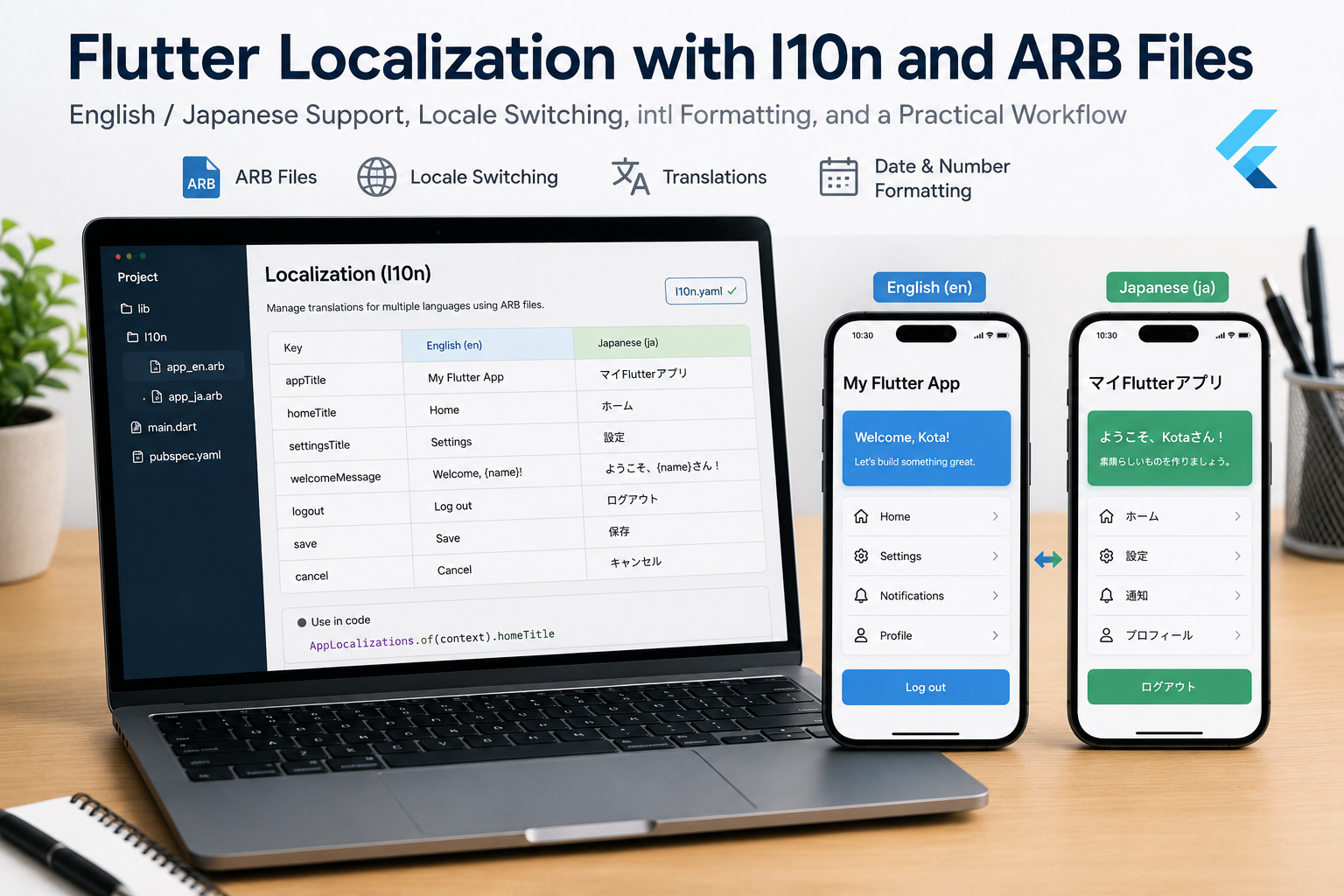
I recently worked on adding localization to a Flutter app, so I wanted to write this down as a practical memo for myself. Flutter localization is not difficult once the structure is clear, but there are a few details—ARB files, generated classes, locale switching, and translation workflow—that are easy to forget later.
This guide covers how to set up Flutter’s official gen-l10n flow, manage English/Japanese translations, and keep localization maintainable as your app grows.
Audience: Beginner–IntermediateTested on: Flutter 3.x, Dart 3.x, Android 14 / iOS 17, macOS 14
- What localization means in Flutter
- Install localization dependencies
- Create the l10n folder and ARB files
- Configure gen-l10n
- Wire localization into MaterialApp
- Use translated text in widgets
- Switching language manually
- Formatting dates, numbers, and currencies
- Translation workflow for small teams
- Security & common pitfalls
- FAQ
- Conclusion
What localization means in Flutter
Localization means adapting your app to multiple languages and regions. In Flutter, this usually includes:
- Translating UI text
- Switching labels based on the user’s device language
- Formatting dates, numbers, and currencies correctly
- Keeping translation files organized as the app grows
Flutter’s recommended approach is to use ARB files and generate strongly typed localization classes with flutter gen-l10n.
Install localization dependencies
First, add Flutter localization support to pubspec.yaml.
# pubspec.yaml
dependencies:
  flutter:
    sdk: flutter
  flutter_localizations:
    sdk: flutter
  intl: ^latest
Then run:
flutter pub get
Create the l10n folder and ARB files
Create a folder for translation resources:
lib/l10n/
  app_en.arb
  app_ja.arb
Example English file:
// lib/l10n/app_en.arb
{
  "appTitle": "My Flutter App",
  "homeTitle": "Home",
  "settingsTitle": "Settings",
  "welcomeMessage": "Welcome, {name}!",
  "@welcomeMessage": {
    "description": "Welcome message shown on the home screen",
    "placeholders": {
      "name": {
        "type": "String"
      }
    }
  }
}
Example Japanese file:
// lib/l10n/app_ja.arb
{
  "appTitle": "マイFlutterアプリ",
  "homeTitle": "ホーム",
  "settingsTitle": "設定",
  "welcomeMessage": "ようこそ、{name}さん!"
}
The key names must match across languages. The English file often acts as the source file, and other languages follow that structure.
Configure gen-l10n
Create a l10n.yaml file at the project root.
# l10n.yaml
arb-dir: lib/l10n
template-arb-file: app_en.arb
output-localization-file: app_localizations.dart
output-class: AppLocalizations
nullable-getter: false
Then enable generation in pubspec.yaml:
# pubspec.yaml
flutter:
  generate: true
Now run:
flutter gen-l10n
In many Flutter projects, generated localization code is also refreshed automatically when running flutter pub get, flutter run, or a build command, as long as generate: true is set.
Wire localization into MaterialApp
Import the generated localization class and configure MaterialApp.
// lib/main.dart
import 'package:flutter/material.dart';
import 'package:flutter_localizations/flutter_localizations.dart';
import 'package:flutter_gen/gen_l10n/app_localizations.dart';

void main() {
  runApp(const MyApp());
}

class MyApp extends StatelessWidget {
  const MyApp({super.key});

  @override
  Widget build(BuildContext context) {
    return MaterialApp(
      title: 'Localization Demo',
      localizationsDelegates: const [
        AppLocalizations.delegate,
        GlobalMaterialLocalizations.delegate,
        GlobalWidgetsLocalizations.delegate,
        GlobalCupertinoLocalizations.delegate,
      ],
      supportedLocales: AppLocalizations.supportedLocales,
      home: const HomeScreen(),
    );
  }
}
GlobalMaterialLocalizations, GlobalWidgetsLocalizations, and GlobalCupertinoLocalizations provide built-in translations for Flutter widgets such as date pickers and default UI labels.
Use translated text in widgets
Once the setup is complete, you can access translations from BuildContext.
// lib/screens/home_screen.dart
import 'package:flutter/material.dart';
import 'package:flutter_gen/gen_l10n/app_localizations.dart';

class HomeScreen extends StatelessWidget {
  const HomeScreen({super.key});

  @override
  Widget build(BuildContext context) {
    final l10n = AppLocalizations.of(context);

    return Scaffold(
      appBar: AppBar(
        title: Text(l10n.homeTitle),
      ),
      body: Center(
        child: Text(l10n.welcomeMessage('Kota')),
      ),
    );
  }
}
This is much safer than manually looking up strings by key because missing or renamed translations become easier to catch during development.
Switching language manually
By default, Flutter uses the device language. If you want to let users choose a language inside the app, keep the selected Locale in state.
class LocaleController extends ChangeNotifier {
  Locale? _locale;

  Locale? get locale => _locale;

  void setLocale(Locale? locale) {
    _locale = locale;
    notifyListeners();
  }
}
Then pass it to MaterialApp:
MaterialApp(
  locale: localeController.locale,
  localizationsDelegates: const [
    AppLocalizations.delegate,
    GlobalMaterialLocalizations.delegate,
    GlobalWidgetsLocalizations.delegate,
    GlobalCupertinoLocalizations.delegate,
  ],
  supportedLocales: AppLocalizations.supportedLocales,
  home: const HomeScreen(),
)
If the user chooses Japanese, set Locale('ja'). If they choose “system default,” set null so Flutter follows the device language again.
Formatting dates, numbers, and currencies
Text translation is only one part of localization. For dates and numbers, use intl.
import 'package:intl/intl.dart';

String formatDate(DateTime date, Locale locale) {
  return DateFormat.yMMMd(locale.toLanguageTag()).format(date);
}

String formatCurrency(num amount, Locale locale) {
  return NumberFormat.simpleCurrency(locale: locale.toLanguageTag()).format(amount);
}
For example, English and Japanese users may expect different date formats, separators, and currency symbols.
Translation workflow for small teams
For a small Flutter project, a simple workflow is enough:
- Add or update keys in
app_en.arb. - Add matching translations in
app_ja.arb. - Run
flutter gen-l10n. - Fix compile errors where keys were renamed or removed.
- Review screens in both languages before release.
As the app grows, consider adding a checklist in pull requests:
- Are all new UI strings localized?
- Are Japanese translations natural, not literal?
- Do long translations fit on small screens?
- Are placeholders documented?
Security & common pitfalls
- Hard-coded strings: Avoid leaving user-facing text directly in widgets. It becomes painful to translate later.
- Missing placeholder metadata: Document placeholders with
@keymetadata so translators understand context. - Long text overflow: Japanese may be compact, but other languages can be much longer. Test with narrow devices.
- Secrets in ARB files: ARB files are source-controlled resources. Never put API keys, tokens, or private internal notes in them.
- Assuming locale equals country: Language and region are different. For example, English can be used in many regions with different date/currency expectations.
FAQ
Q: Should I use Flutter’s built-in gen-l10n or a third-party package?
A: For most apps, Flutter’s built-in gen-l10n is enough. It is official, strongly typed, and works well with ARB files. Third-party tools may help if you need advanced translation platform integration.
Q: Should ARB files be committed to Git?
A: Yes. ARB files are source files for translations. Commit them so every developer and CI build can generate the same localization output.
Q: How do I handle missing translations?
A: Keep app_en.arb as the template, ensure all locale files have matching keys, and run generation during CI. You can also add custom checks to detect missing keys before release.
Conclusion
Flutter localization becomes manageable when you treat translations as part of your normal development workflow. Put strings in ARB files, generate typed localization classes, test screens in multiple languages, and document placeholders clearly. Once this structure is in place, adding English/Japanese support—and later more languages—becomes much less scary.
Updated: 2026-7-5



Comment